Access to Ecommerce Platforms
Granting Drive Marketing Access to Ecommerce Platforms
Drive Marketing may require access to your ecommerce platform to manage your online store, configure integrations, and assist with marketing and performance improvements.
This guide explains how to grant access to the following platform:
- Shopify
- Amazon Seller Central
Providing access allows our team to assist with store configuration without requiring your account password.
Shopify
Drive Marketing uses Shopify Collaborator Access to securely manage your store. This allows our team to request access through the Shopify Partner system without needing your login credentials.
Step 1: Open Shopify Settings
- Log in to your Shopify Admin Dashboard
- Click Settings in the lower-left corner
Step 2: Open Users and Permissions
- In the Settings menu, click Users and permissions
Step 3: Locate Collaborator Accounts
- Scroll down to the Collaborator Accounts section
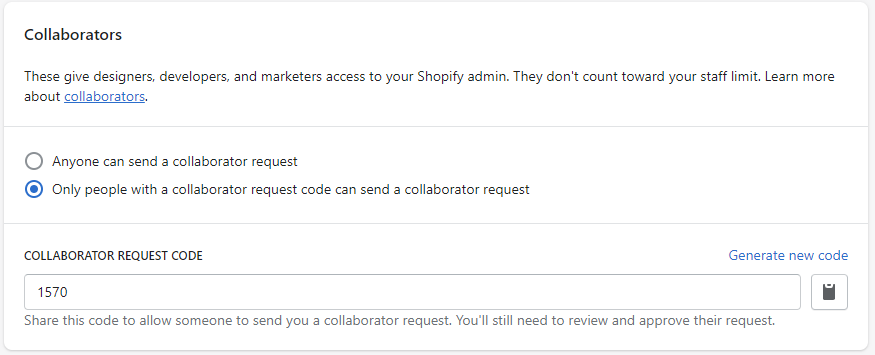
Step 4: Enable Collaborator Requests
- Select Only people with a collaborator request code can send a collaborator request
- Shopify will generate a 4-digit collaborator request code
- Make note of this code
Step 5: Send Your Store Information
Send the following information to Drive Marketing:
- Your 4-digit collaborator request code
- Your Shopify store domain
Example format:
yourstore.myshopify.com
What Happens Next
Once we receive your collaborator code and store domain, the Drive Marketing team will submit a collaborator access request through our Shopify Partner account.
You will receive a notification in Shopify to approve the request.
After approval, our team will be able to assist with your store configuration and management.
Amazon Seller Central
Drive Marketing may require access to your Amazon Seller Central account to manage product listings, monitor performance, and optimize your ecommerce strategy.
Providing access allows our team to assist with your account without sharing your login credentials, using Amazon’s User Permissions system.
Amazon Seller Central
Amazon allows you to grant access by adding secondary users with specific permission levels so you can control what Drive Marketing can view or manage.
Step 1: Open User Permissions
- Log in to your Amazon Seller Central account
- Click Settings in the top-right corner
- Select User Permissions
Step 2: Add a New User
- In the User Permissions section, enter the following email address:
[email protected] - Click Send invitation
Step 3: Notify Drive Marketing
- After sending the invitation, notify your Drive Marketing account manager.
- The team will accept the invitation and access your account
Step 4: Assign Permissions
- Once the user is added, return to the User Permissions page
- Click Manage Permissions next to the user
- Assign the appropriate permission levels based on access required (e.g., Inventory, Advertising, Reports)
- Click Save
Important Notes
- You must have a Professional selling plan to add additional users and manage permissions.
- Do not share your password — always use the User Permissions system for secure access.
- Only grant the minimum necessary permissions for optimal security.
Confirmation
Once access has been granted, Drive Marketing will receive a notification and can begin managing or analyzing your Amazon Seller Central account.
If you are unsure which permissions should be assigned, please contact your Drive Marketing account manager.
