Setting up a Custom Domain Email Account

Setting Up Gmail With Your Domain
This guide explains how to configure Gmail so you can send and receive emails using your custom domain hosted by Drive Marketing.
These instructions are based on Gmail’s interface as of December 2019. While the layout may change slightly over time, the general process remains the same.
1. Open Gmail Settings
- Log in to your Gmail account.
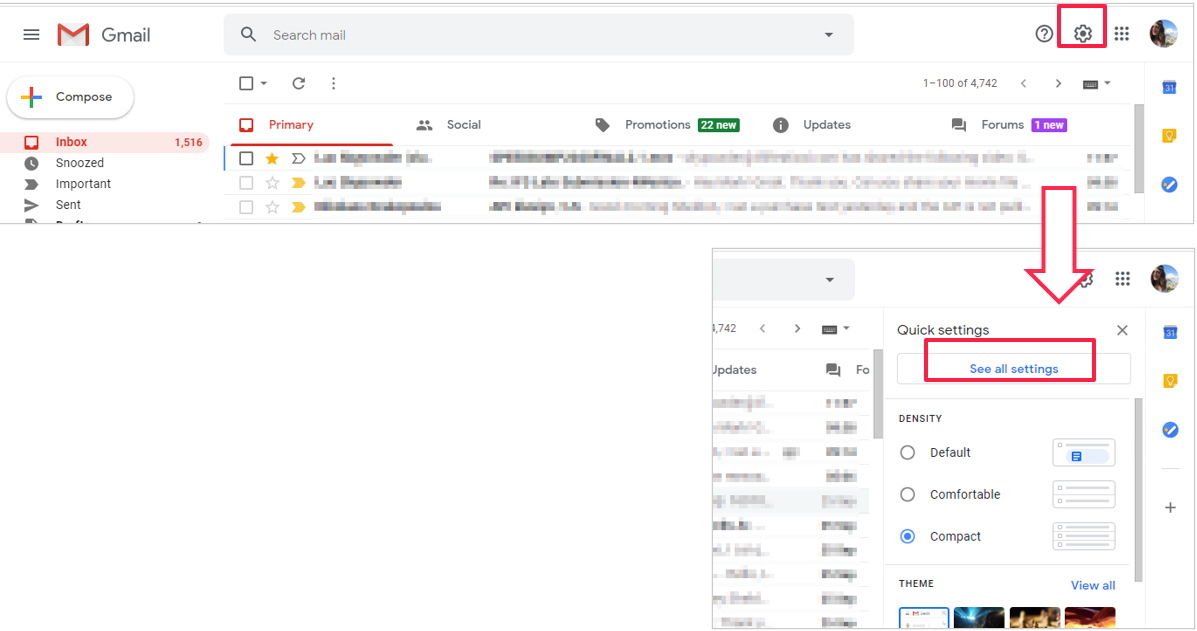
- Click the gear icon in the top-right corner.
- Select See all settings.
2. Add a Mail Account
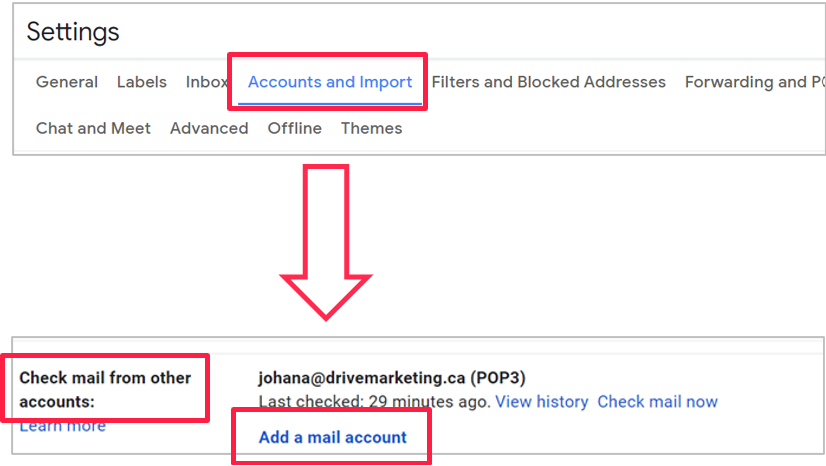
- Click the Accounts and Import tab.
- Scroll to Check mail from other accounts.
- Click Add a mail account.
3. Enter Your Email Address
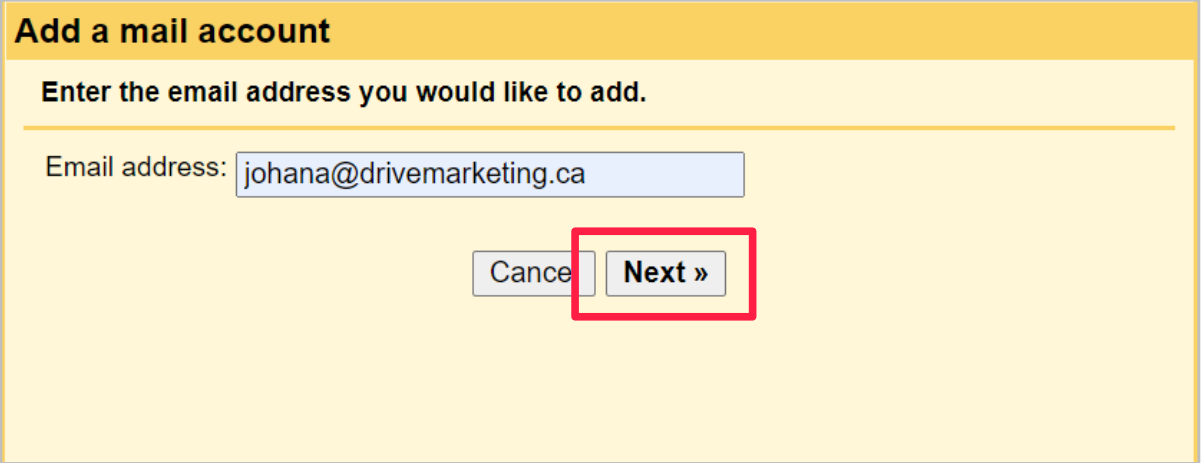
- A pop-up window will appear.
- Enter your full email address.
- Click Next.
4. Select Import Method
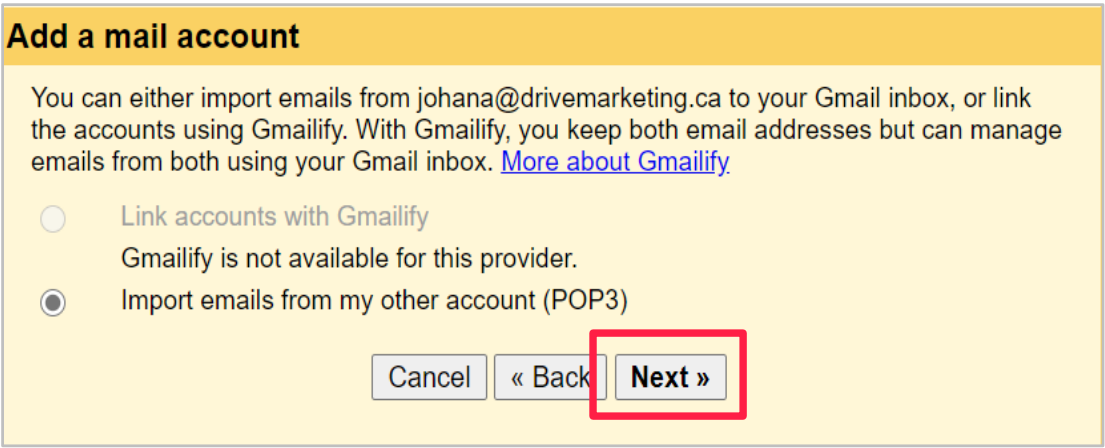
- Choose Import emails from my other account (POP3).
- Click Next.
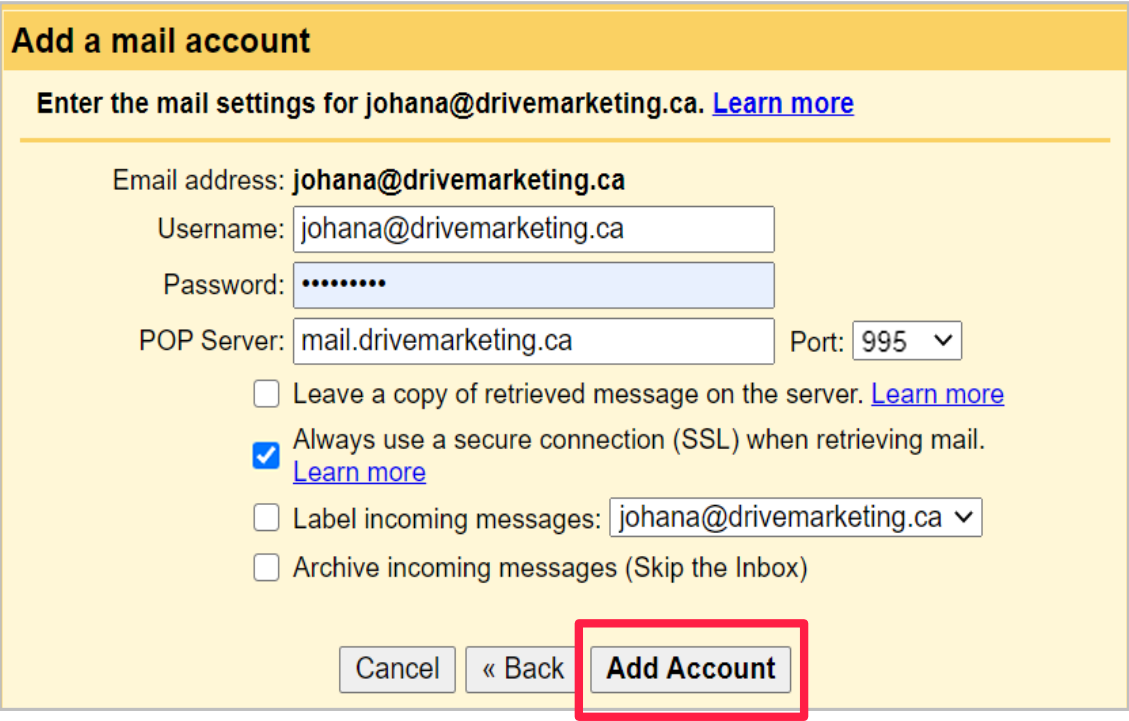
5. Enter Mail Server Details
Fill in the following information:
- Username: Your full email address
- Password: The email password provided to you
- POP Server: mail.YOURDOMAIN.ca
(replace “YOURDOMAIN.ca” with your website domain.)
Leave all other settings as default, then click Add Account.
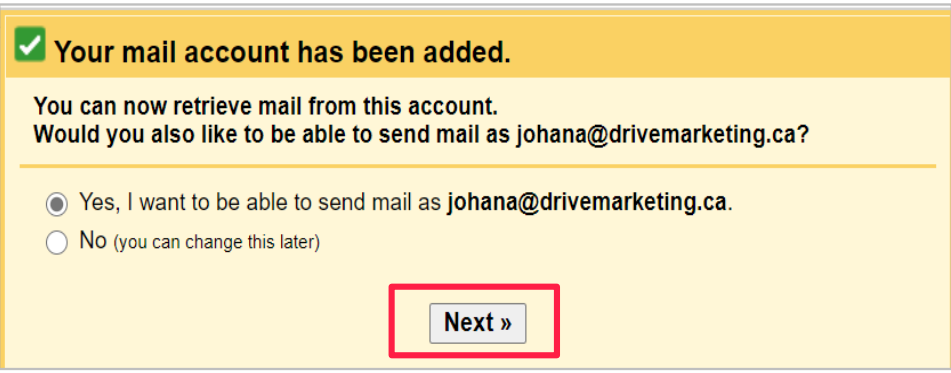
6. Enable Sending From This Address
- Select Yes, I want to be able to send mail as [your email address].
- Click Next.
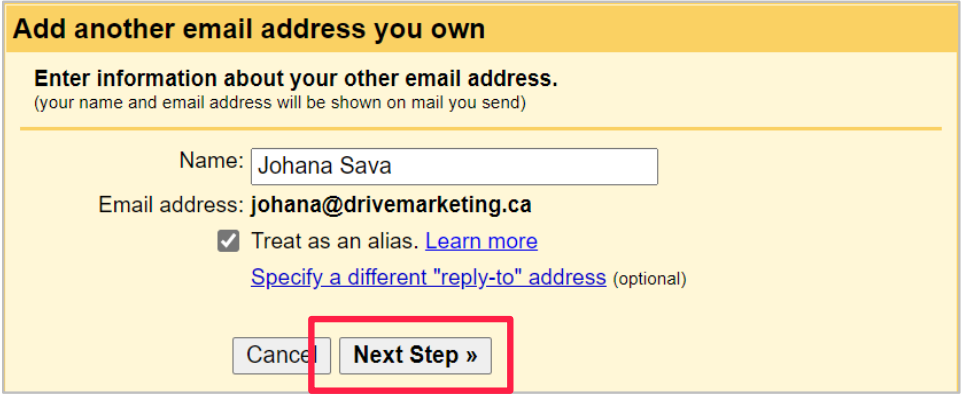
7. Enter Your Name
- Enter the name you would like recipients to see when receiving emails.
- Ensure Treat as an alias is selected.
- Click Next Step.
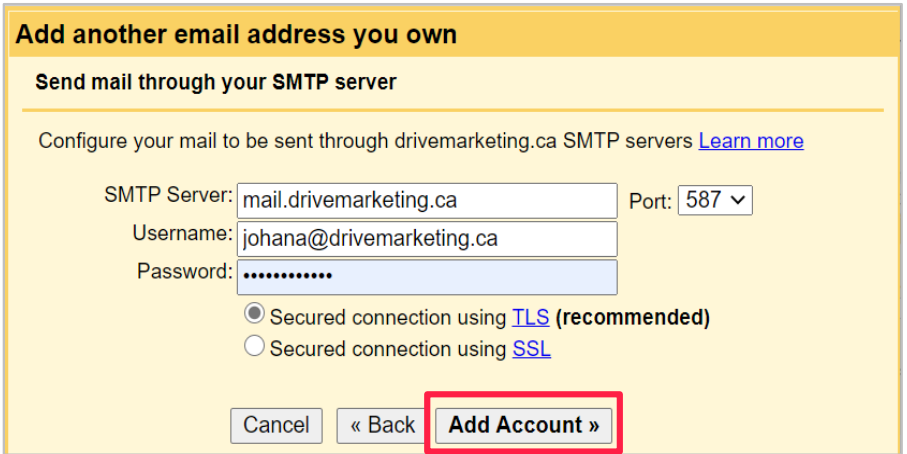
8. Enter SMTP Server Details
Fill in the following:
- SMTP Server: mail.YOURDOMAIN.ca
- Username: Your full email address
- Password: Your email password
Select Secured connection using TLS, then click Add Account.
9. Verify Your Email Address
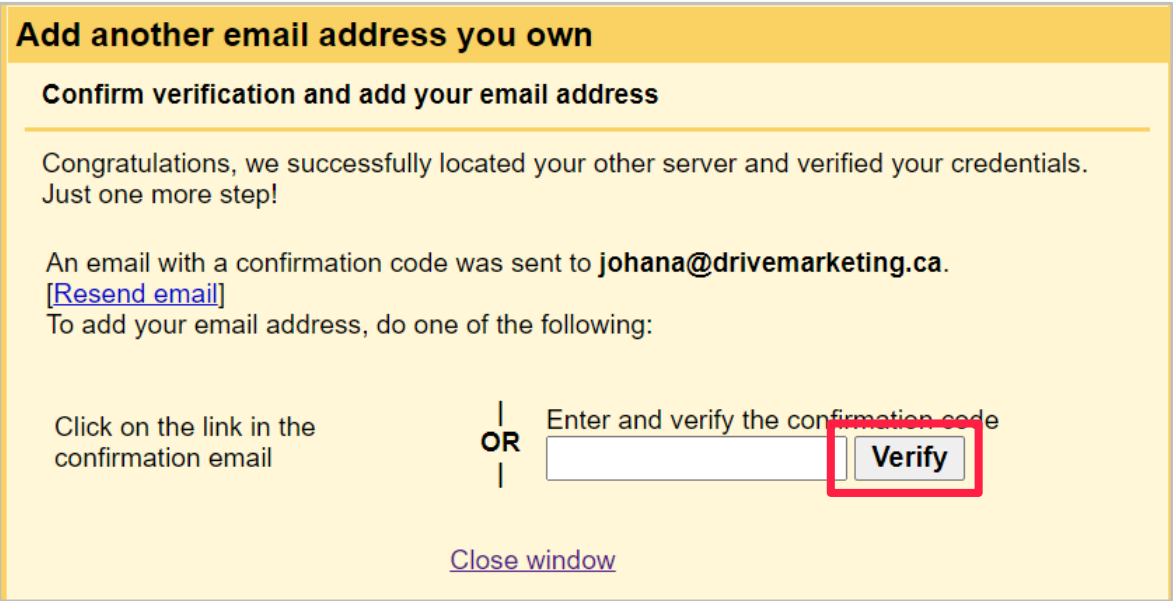
- Gmail will send a confirmation email to your address.
- Open the email from the Gmail Team titled
“Gmail Confirmation – Send Mail as [your email address]”. - Copy the confirmation code from the email.
- Paste the code into the confirmation window.
- Click Verify.
10. Send Emails From Your Domain
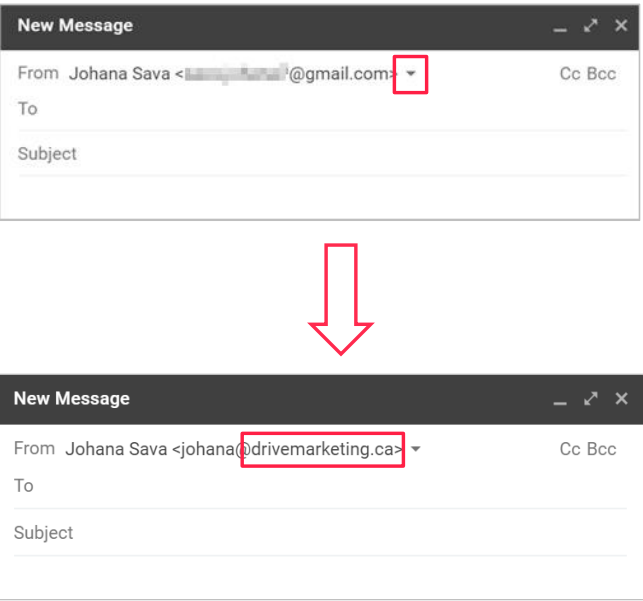
Once setup is complete, you can send emails from your domain.
When composing a new email in Gmail, use the From dropdown menu to select your custom email address.