Managing User Accounts
Managing User Accounts
This section outlines the basics of managing user accounts within the Drive Framework.
Administrators can create multiple user accounts to allow different members of your team to access content management tools. Accounts can be organized into groups, and each group can have different permission levels.
By default, the Drive Framework includes two account types:
- Full Administrator – Complete access to all tools and settings
- Content Manager – Access limited to content-related tools
1. Access Your Control Panel
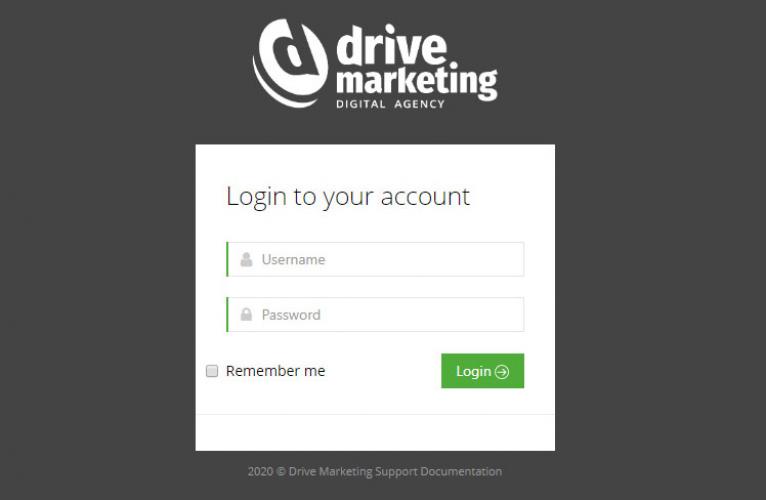
Log in to your website’s administrator control panel.
Please note: Each website uses a unique administrator URL. Refer to your setup documentation for your specific login link.
2. Open the “Accounts” Tool
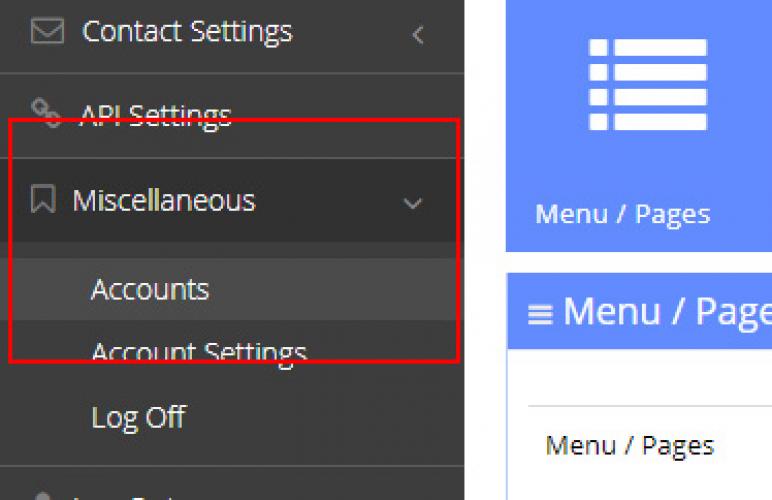
- From the left-hand menu, click Miscellaneous to expand the submenu.
- Select Accounts.
3. Add or Edit an Account
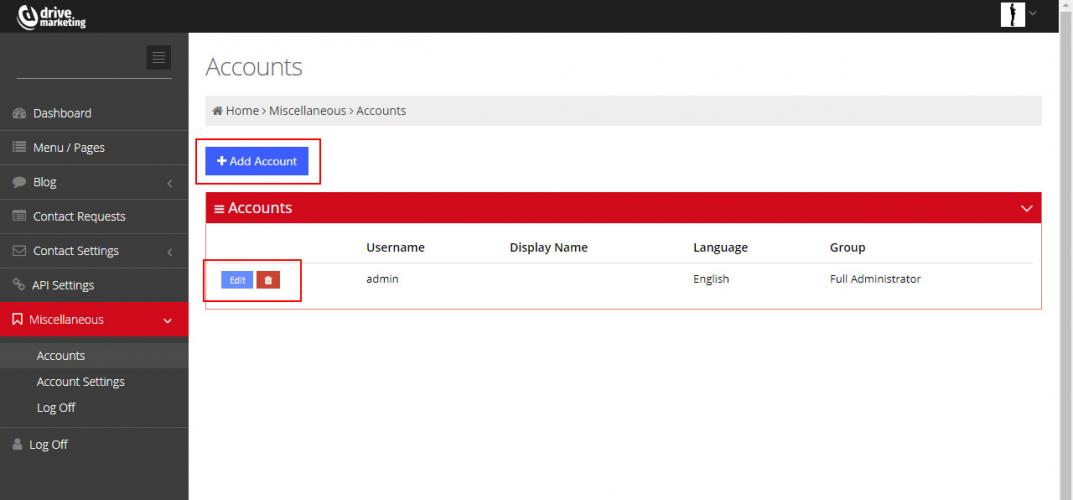
- To create a new user account, click Add Account.
- To modify an existing account, click the Edit button next to the user’s name.
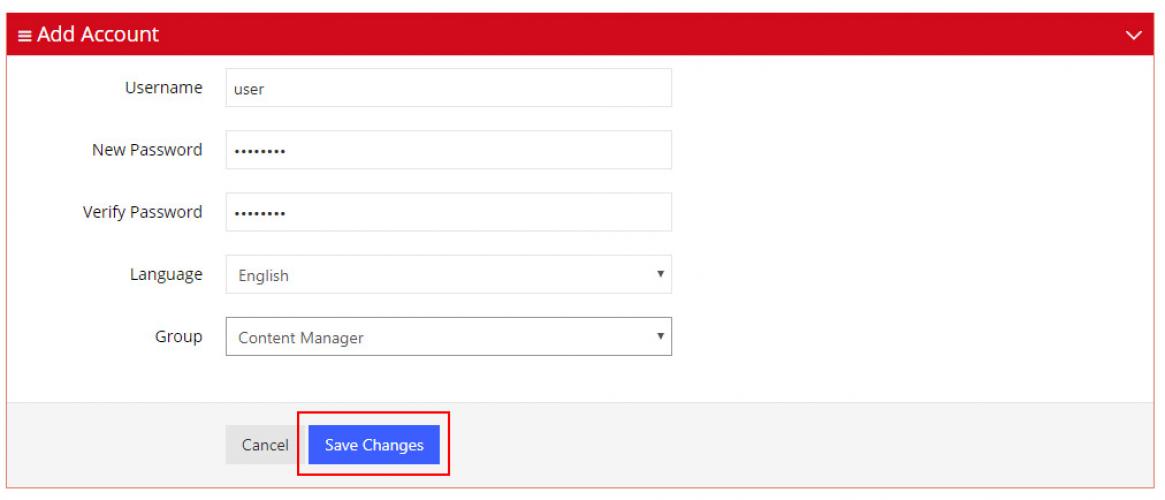
4. Complete the Required Fields
Fill out all required fields.
If you are editing an existing account and leave the password fields blank, the current password will remain unchanged.
When finished, click Save.
5. Confirm Your Changes
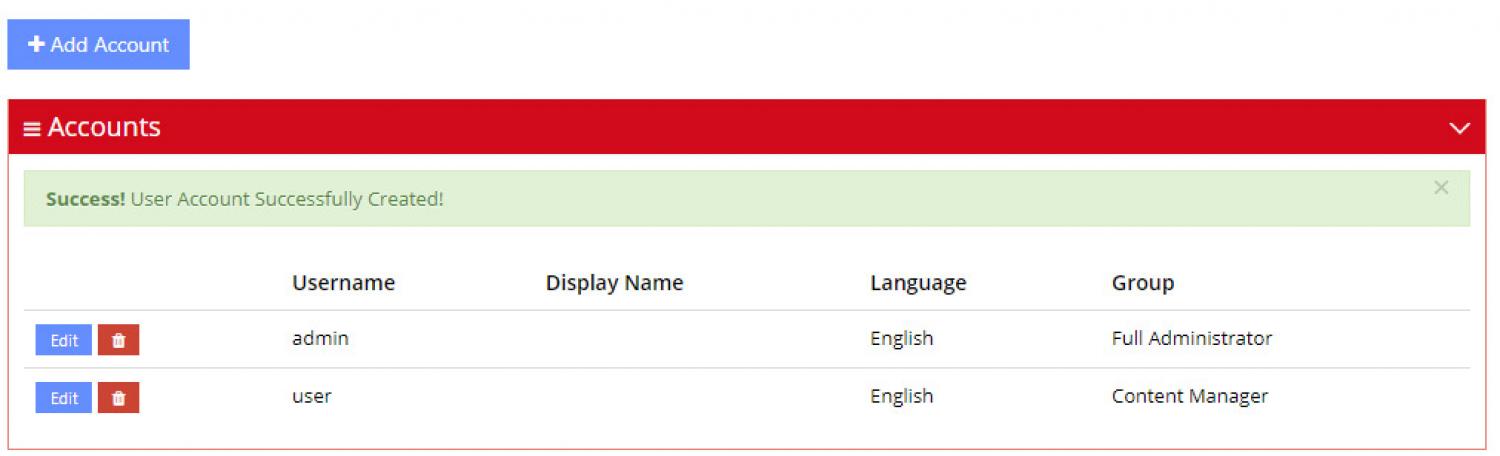
After saving, you will be returned to the List Accounts screen.
A green confirmation bar will appear at the top of the page indicating your changes were saved successfully.