Clearing Your Cache in Chrome
Clearing Your Cache in Google Chrome
This guide explains how to clear cached files in Google Chrome. Clearing your browser cache can help resolve issues with website updates not appearing correctly.
1. Open Google Chrome
Open the Google Chrome web browser on your computer.
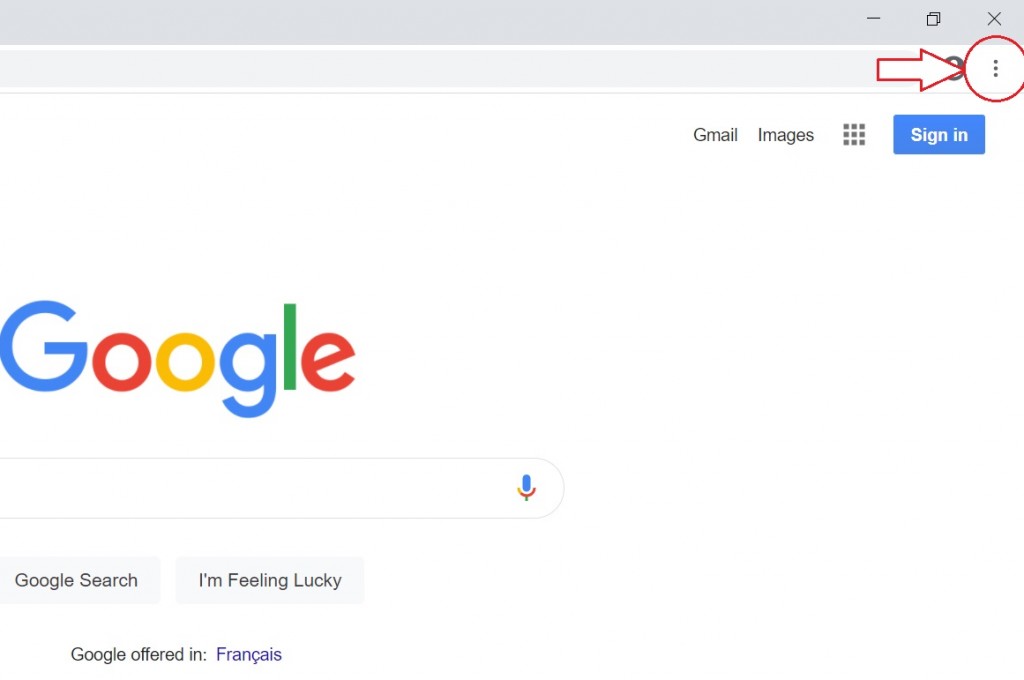
Step 2: Open the Chrome Menu
- Click the three-dot menu icon in the top-right corner of the browser window.
- This will open the Chrome menu.
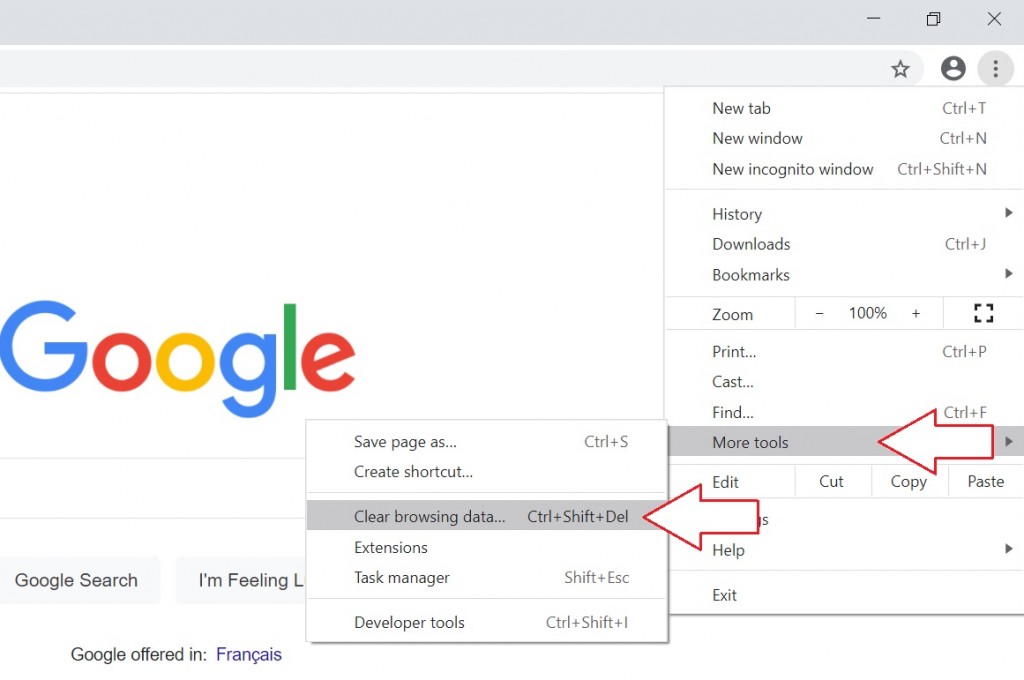
Step 3: Open the Clear Browsing Data Tool
- Hover over More Tools in the menu.
- Click Clear Browsing Data.
Step 4: Select a Time Range
Choose how much data you want to remove.
- To clear your entire cache, select All time.
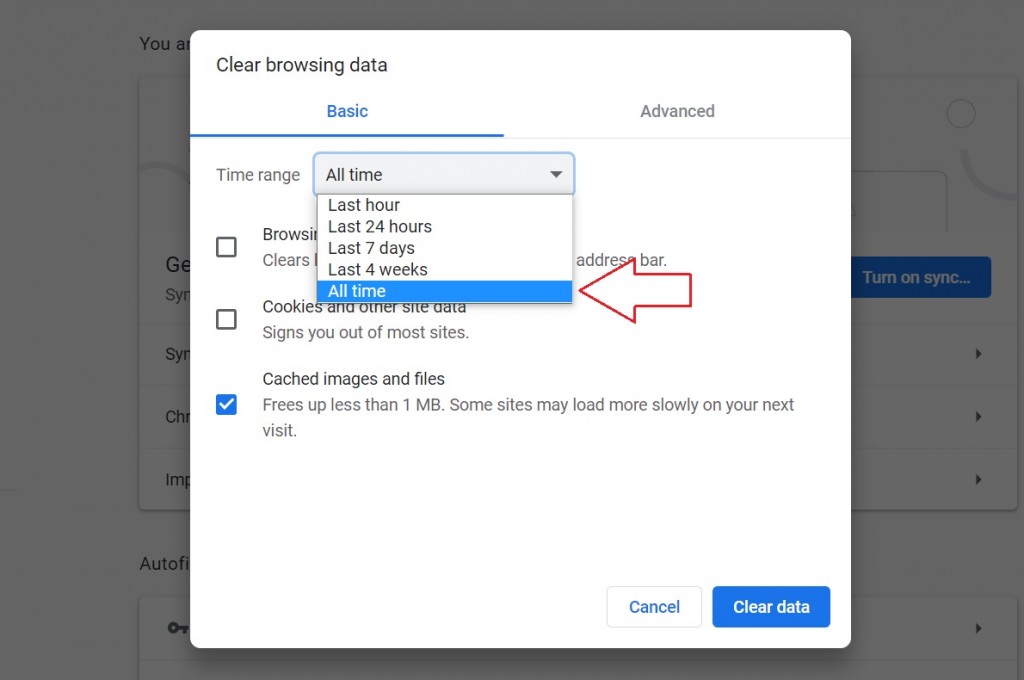
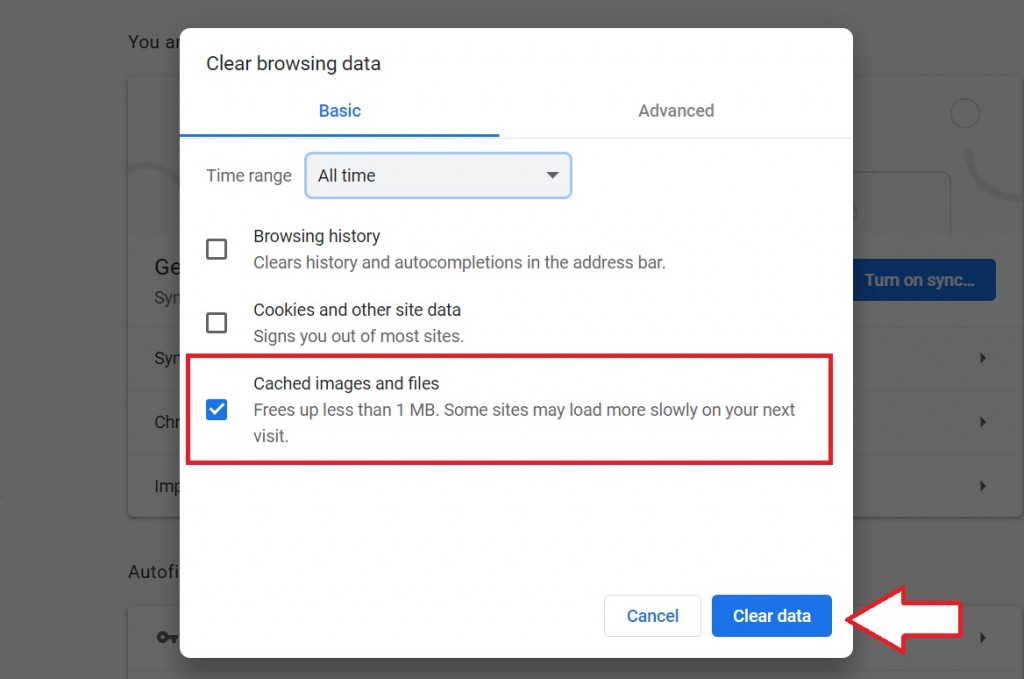
Step 5: Clear Cached Files
- Check the box next to Cached images and files.
- Click Clear data.
Your browser cache will now be cleared