Set up PayPal App

Retrieving Your PayPal Client ID
This guide explains how to retrieve your PayPal Client ID so the Drive Marketing development team can connect your website or application to PayPal for payment processing.
Your Client ID allows our developers to securely integrate PayPal’s payment system so customers can make purchases on your website.
Important: Do not share your PayPal credentials or API information with anyone outside your organization or your Account Executive at Drive Marketing.
Requirements
Before proceeding, ensure that:
- You have already created a PayPal account
- Your account is set up as a Business account (not a personal account).
- You have full access to the PayPal account
1. Sign In to Your PayPal Account
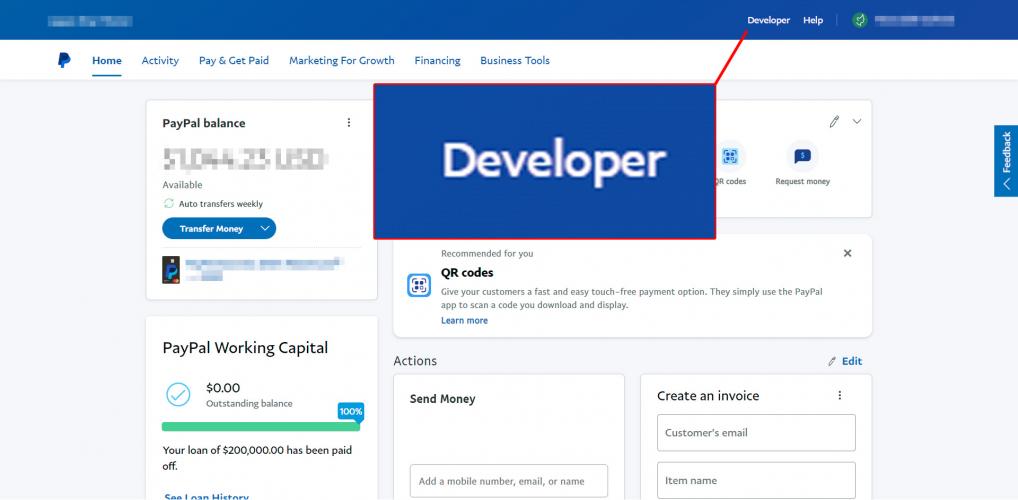
- Log in to your PayPal Business account.
- Click the Developer link in the PayPal dashboard.
2. Open the Developer Dashboard
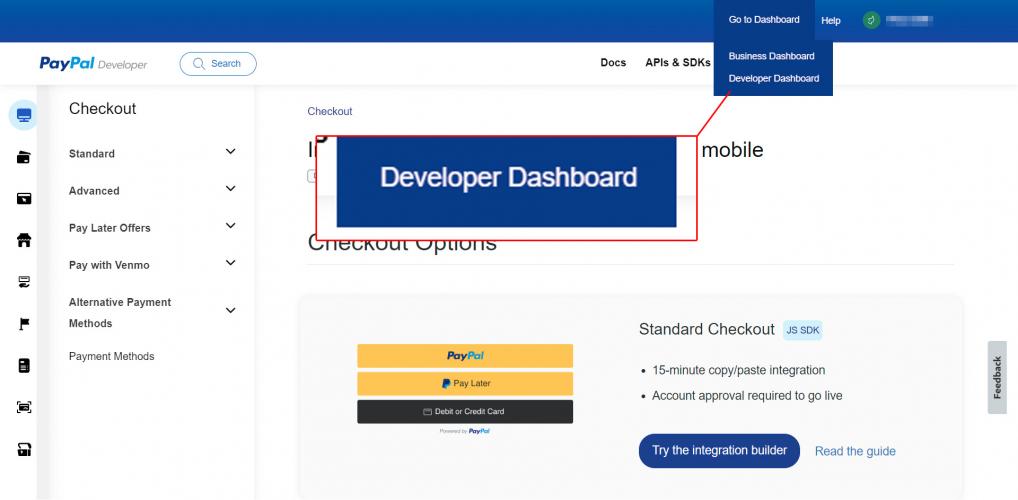
- In the top menu, hover over Go to Dashboard.
- Click Developer Dashboard.
3. Create a Live Application
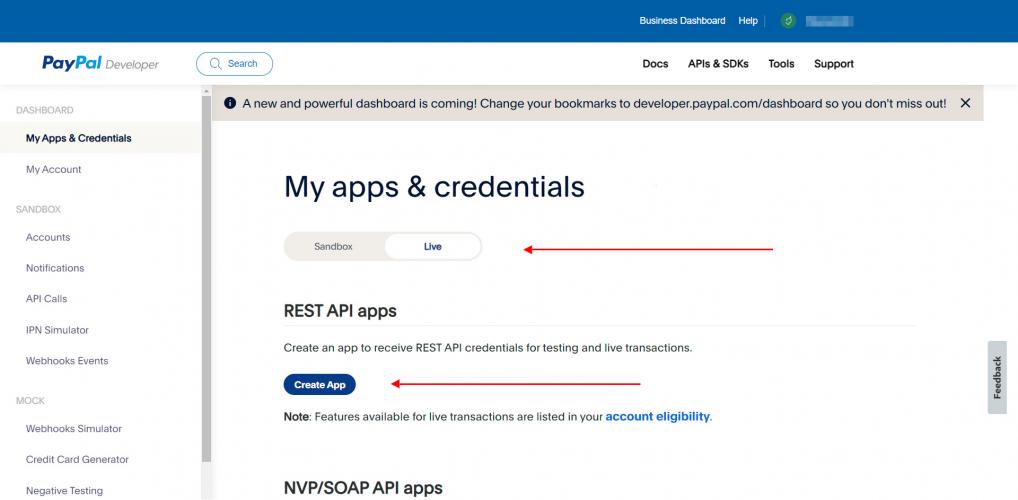
- Make sure you are in Live mode (not sandbox).
- Click Create App.
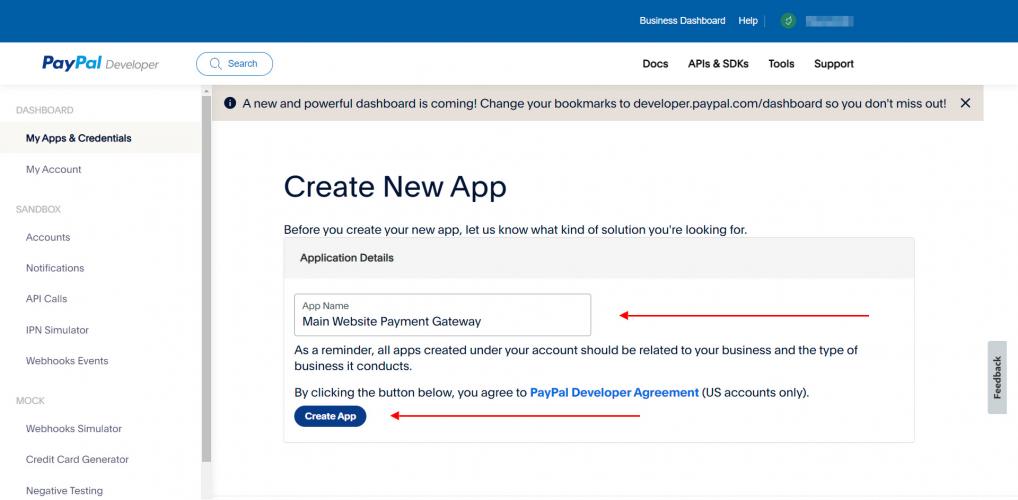
4. Name Your Application
Enter a name for your application.
Example:
Main Website Payment Gateway
Click Create App to continue.
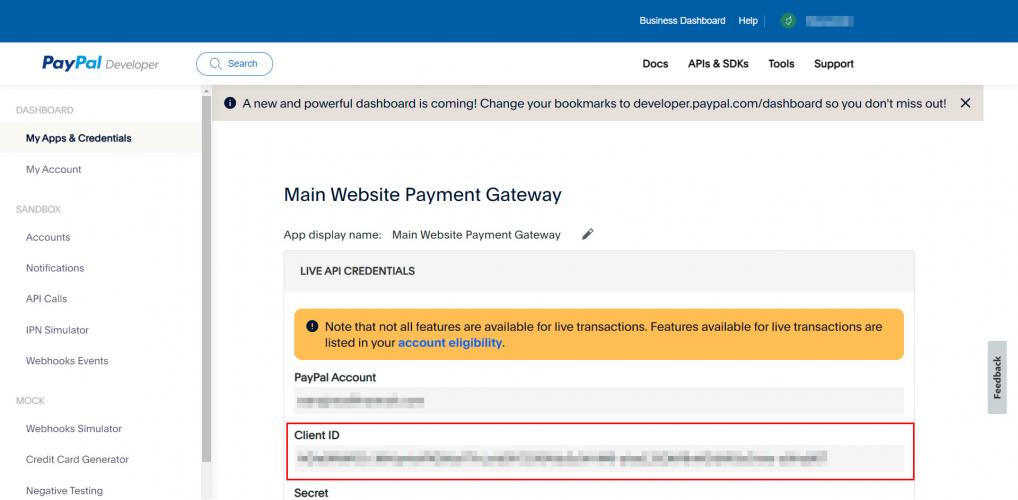
5. Copy the Client ID
- Locate the Client ID on the application page.
- Copy the Client ID.
Provide this information to the Drive Marketing team so we can complete the PayPal integration for your website or application.