Access to Google Platforms
Granting Drive Marketing Access to Google Platforms
Drive Marketing may require access to certain Google tools to manage SEO, advertising, analytics, and product feeds for your website.
This guide explains how to grant access to the following platforms:
- Google Search Console
- Google Analytics
- Google Tag Manager
- Google Ads
- Google Merchant Center
- Google Business Profile
- Youtube
When adding access, please use the following email address unless otherwise instructed:
Google Search Console
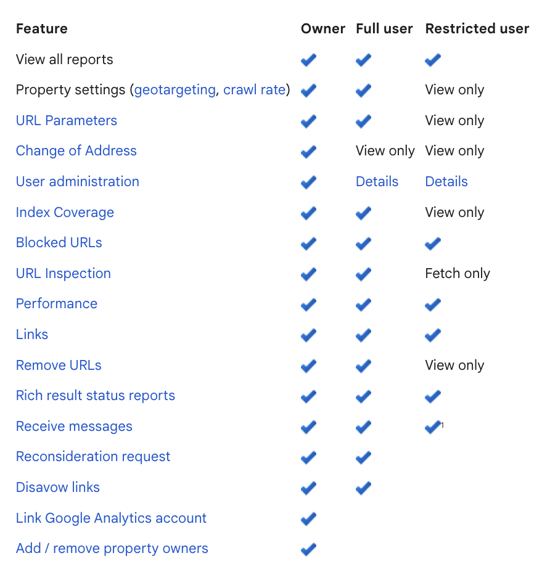
Drive Marketing requires access to Google Search Console to monitor search performance, indexing status, and overall SEO health.
Grant Access
- Log in to Google Search Console
- Select the appropriate property
- Click the Settings icon
- Select Users and permissions
- Click Add user
- Enter the following email address:
[email protected] - Select Full permission level
- Click Add
Google Analytics
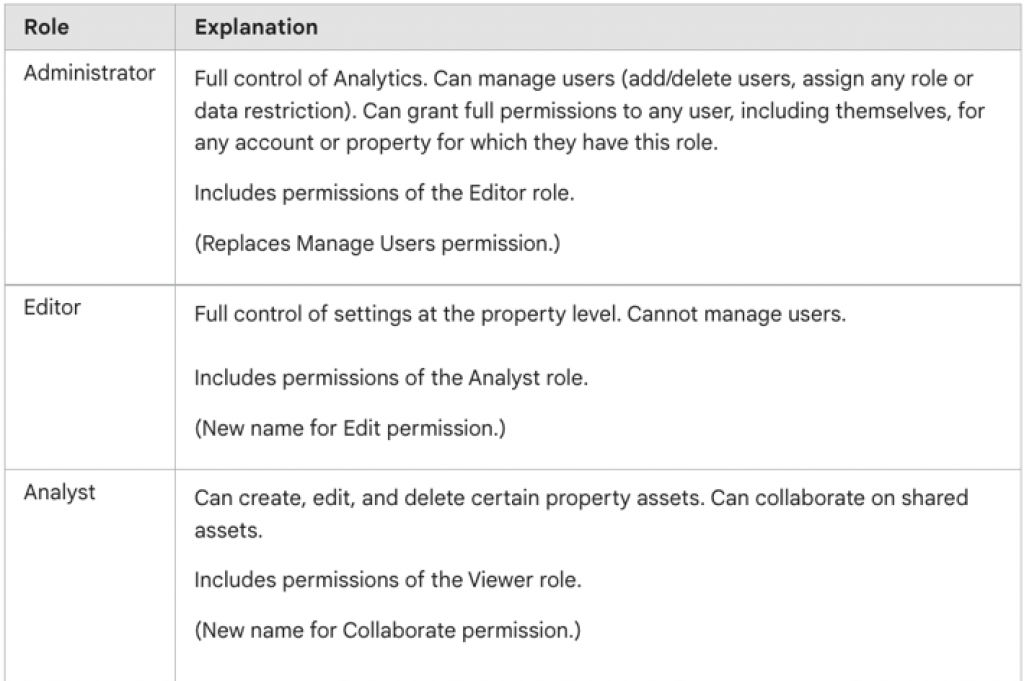
Access to Google Analytics allows Drive Marketing to analyze website traffic, user behaviour, and marketing performance.
Grant Access
- Log in to Google Analytics
- Click Admin
- In the Account or Property column, click Access Management
- Click + Add users
- Enter the following email address:
[email protected] - Enable Notify new users by email
- Select the appropriate permissions
- Click Add
Google Tag Manager
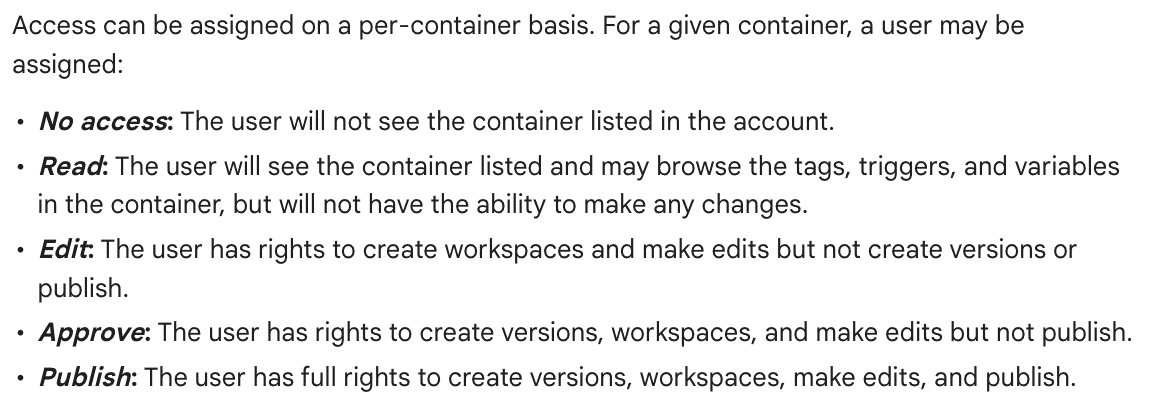
Drive Marketing may require access to Google Tag Manager to implement tracking scripts and marketing tags.
Grant Access
- Log in to Google Tag Manager
- Click Admin
- In the Account column, select User Management
- Click + Add Users
- Enter the following email address:
[email protected] - Assign User or Administrator permissions
Click Invite
Google Ads
Drive Marketing may require access to your Google Ads account to manage or optimize advertising campaigns.
Grant Access
- Log in to Google Ads
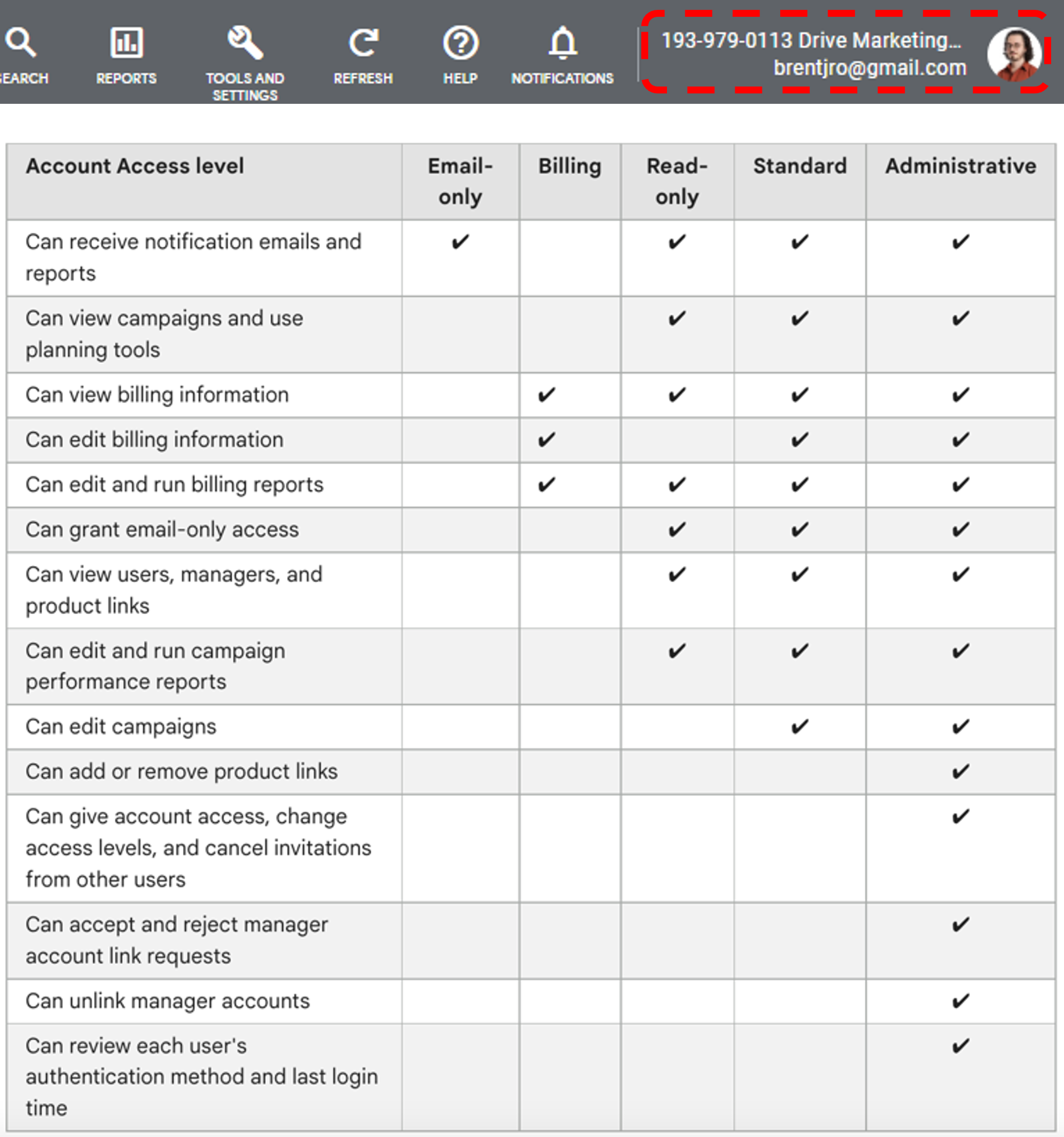
- Locate your Account ID in the top-left corner
- Send this Account ID to your Drive Marketing account manager
Once the Account ID is received, Drive Marketing will send an access request to your account.
Google Merchant Center
Drive Marketing may require access to Google Merchant Center to manage product feeds and Google Shopping campaigns.
Grant Access
- Log in to Google Merchant Center
- Click the gear icon
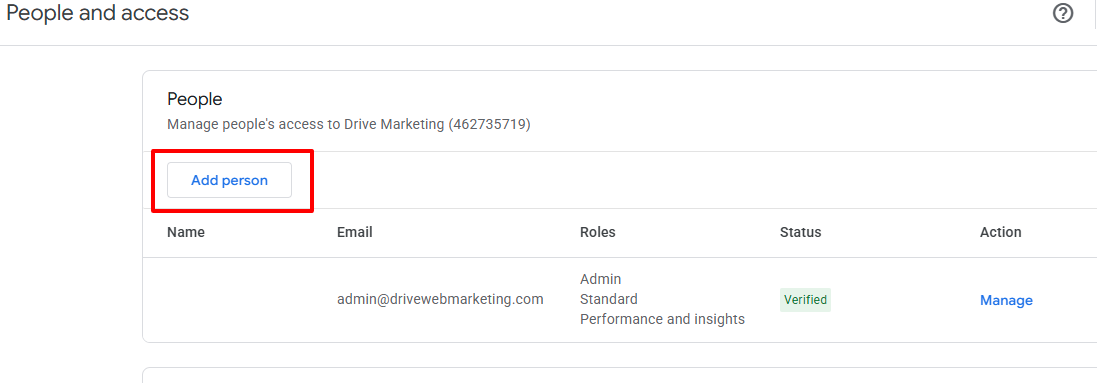
- Select People and access
- Click Add person
- Enter the following email address:
[email protected] - Choose one of the following access levels:
- Standard – for audits or limited support
- Admin – for ongoing management support
- Click Add
Google Business Profile
Drive Marketing may require access to your Google Business Profile to manage listing information, monitor reviews, and optimize your local search visibility.
Step 1: Open Your Google Business Profile
- Log in to your Google account
- Go to your Google Business Profile
- If you manage multiple locations, select the appropriate business listing
Step 2: Open Business Profile Settings
- Click the three-dot menu
- Select Business Profile settings
Step 3: Open the Managers Section
- Click Managers
This section allows you to manage users who have access to your business listing.
Step 4: Add a New Manager
- Click Add
- Enter the following email address:
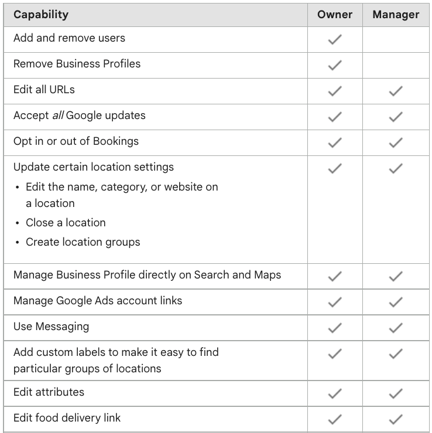
[email protected] - Select the role Manager
Step 5: Send the Invitation
- Click Invite to send the access request
Confirmation
Once the invitation is sent, Drive Marketing will receive a notification and can begin managing and optimizing your Google Business Profile.
If you are unsure which listing should be shared, please contact your Drive Marketing account manager.
YouTube
Drive Marketing may require access to your YouTube channel to monitor performance or assist with video campaigns.
Grant Access
- Go to studio.youtube.com
- Click Settings in the left-hand menu
- Select Permissions
- Click Invite
- Enter the following email address:
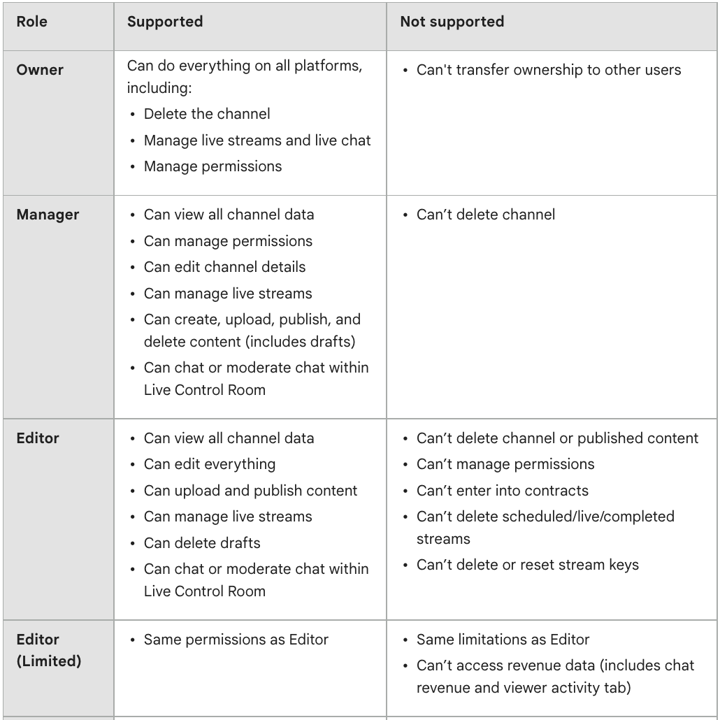
[email protected] - Select one of the following roles:
- Manager
- Editor
- Click Save