Parts Finder Instructions
Context
This document outlines how to associate products with car models in order to provide the data that the Parts Finder needs to return results.
The way the Parts Finder works, visitors are prompted to select a Year, Make, Model, and Inventory Type in order to query the inventory and return a list of compatible products.
Logically, for this to work, the system needs to know which inventory items are compatible with which Makes, Models, and Years.
Unfortunately, there is no existing database for our system to pull from so this information needs to be entered via the admin panel.
Overview
The basic steps to connect inventory items to car models:
Ensure all target car model exists in the system
Link the product category (ex. Engine Model, Transmission Model) to the desired car model(s)
1. Ensure Car Model(s) Exist
Log into the admin panel and complete the following steps:
Click “Inventory Settings” left-menu item
Click “Car Models” submenu item
Click on the target make (ex. “Nissan”)
If car does not exist, click “Add Car Model Entry”
Enter the “Title” and “Save Changes”
Scroll down and “Add Trim” as needed
Repeat the above until all cars are entered
2. Link Product Category
Log into the admin panel and complete the following steps:
Click “Inventory Settings” left-menu item
Click “Engine Models” or “Transmission Models” submenu item
Click on the target make (ex. “Nissan”)
Click “Edit” next to the target model
Scroll down to “Car Models for [brand]”
Click “Trims & Years” next to the desired car model
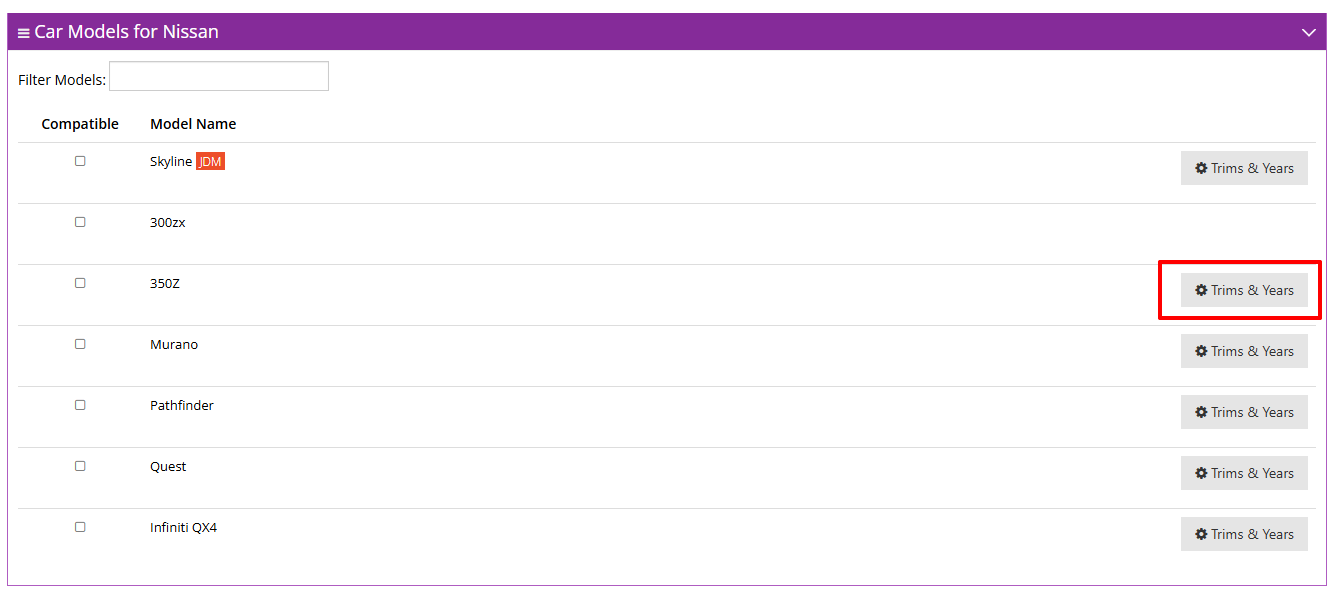
Check “Compatible” next to the desired trim and set the start and end year
IMPORTANT: Click “Update Applicable Years”
.png)
Repeat the above steps as necessary.